Channel Action Creation - Quickstart #2
Now that you have SSO set up, it’s time to define the actions you want to track on your website. Channel Actions represent the key interactions users can perform, such as clicking buttons, submitting forms, or viewing content.
They can be created via the FanFest dashboard in just a few steps:
- From the channel page, click on the manage leaderboard button.
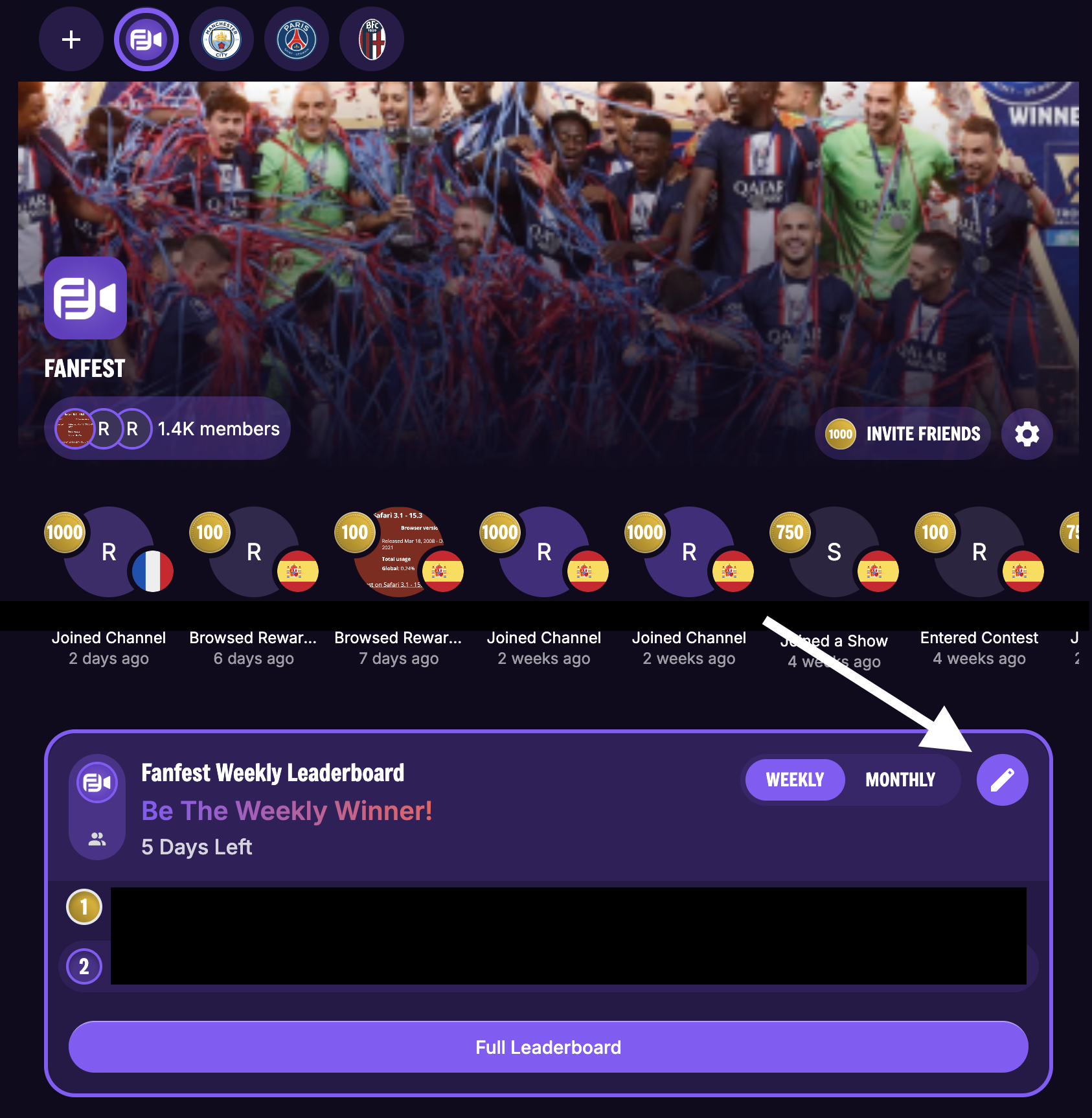
- Click the
Channel Actionsbutton.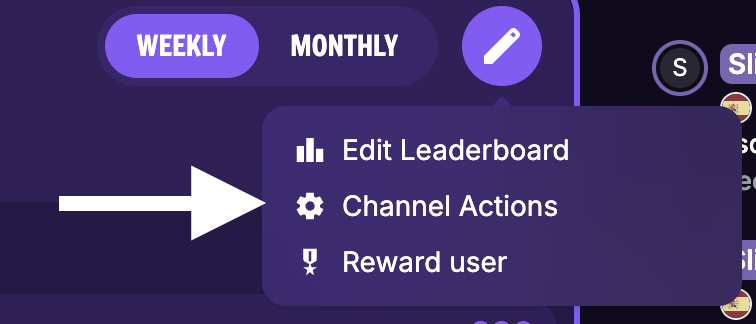
- From the Channel Actions modal, click the
Add New Channel Actionbutton.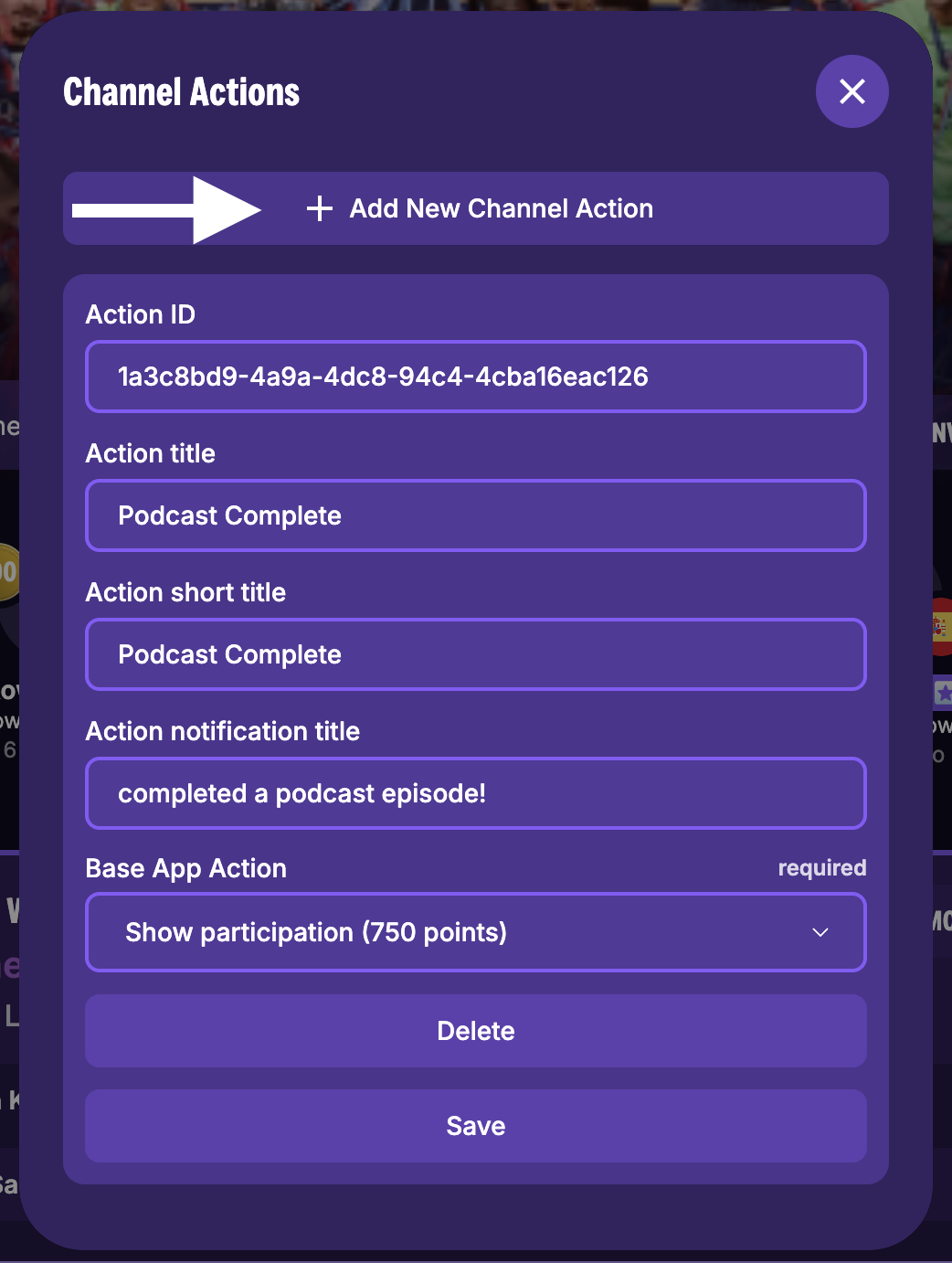
- Fill in the action details:
- Action title: A descriptive name for the action (e.g., "Newsletter Subscription", "Browsed Tickets").
- Action short title: A concise name used in the activity row (e.g., "Subscribed", "Browse Tickets").
- Action notification title: Title for any notifications sent to users when they perform this action (e.g., "+100 points! Subscribed to Newsletter!").
- Base App Action: Select an existing base action that best matches your new action. This matches the action to predefined reward rules that are standard across the FanFest platform.
- Click on
Saveto create the action.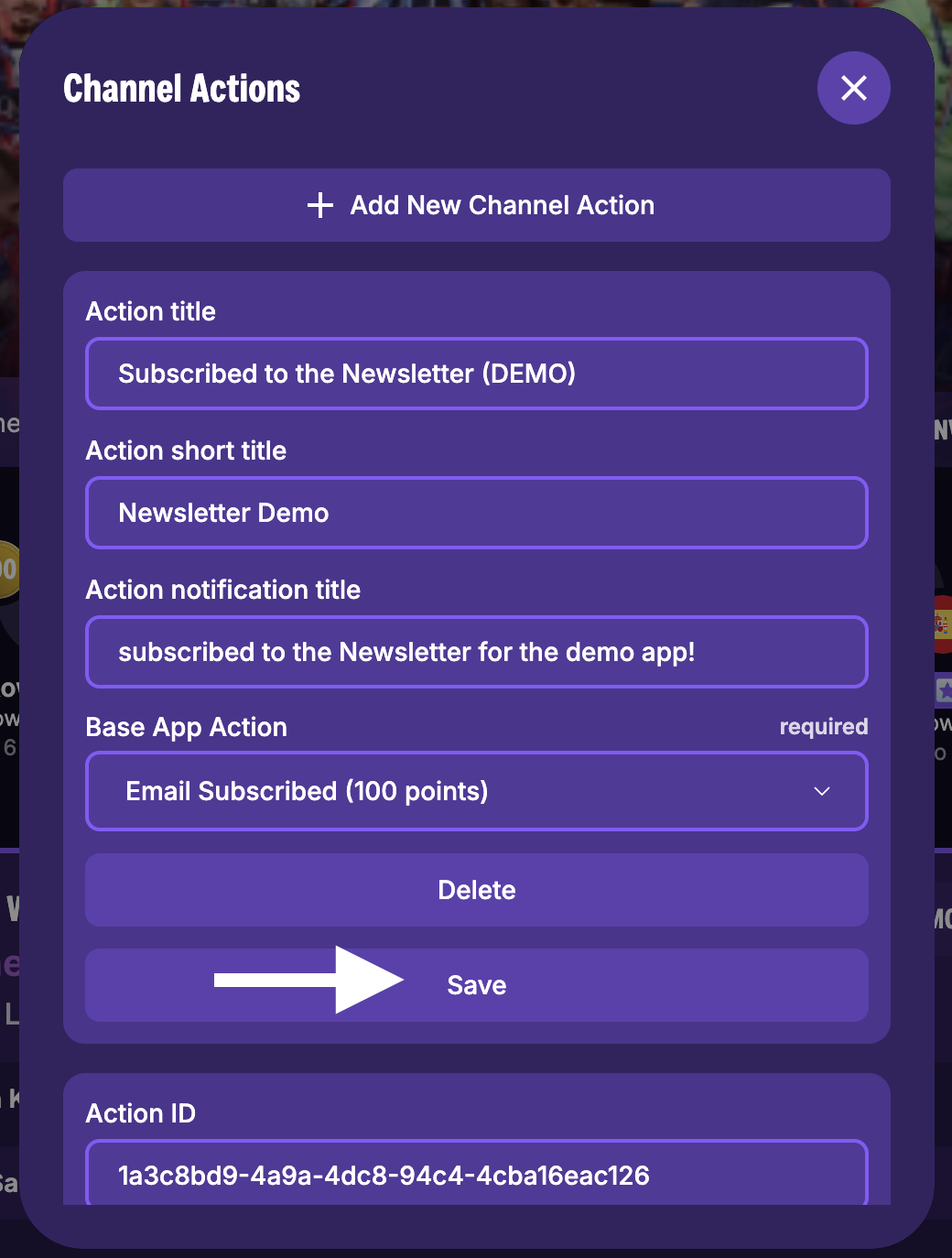
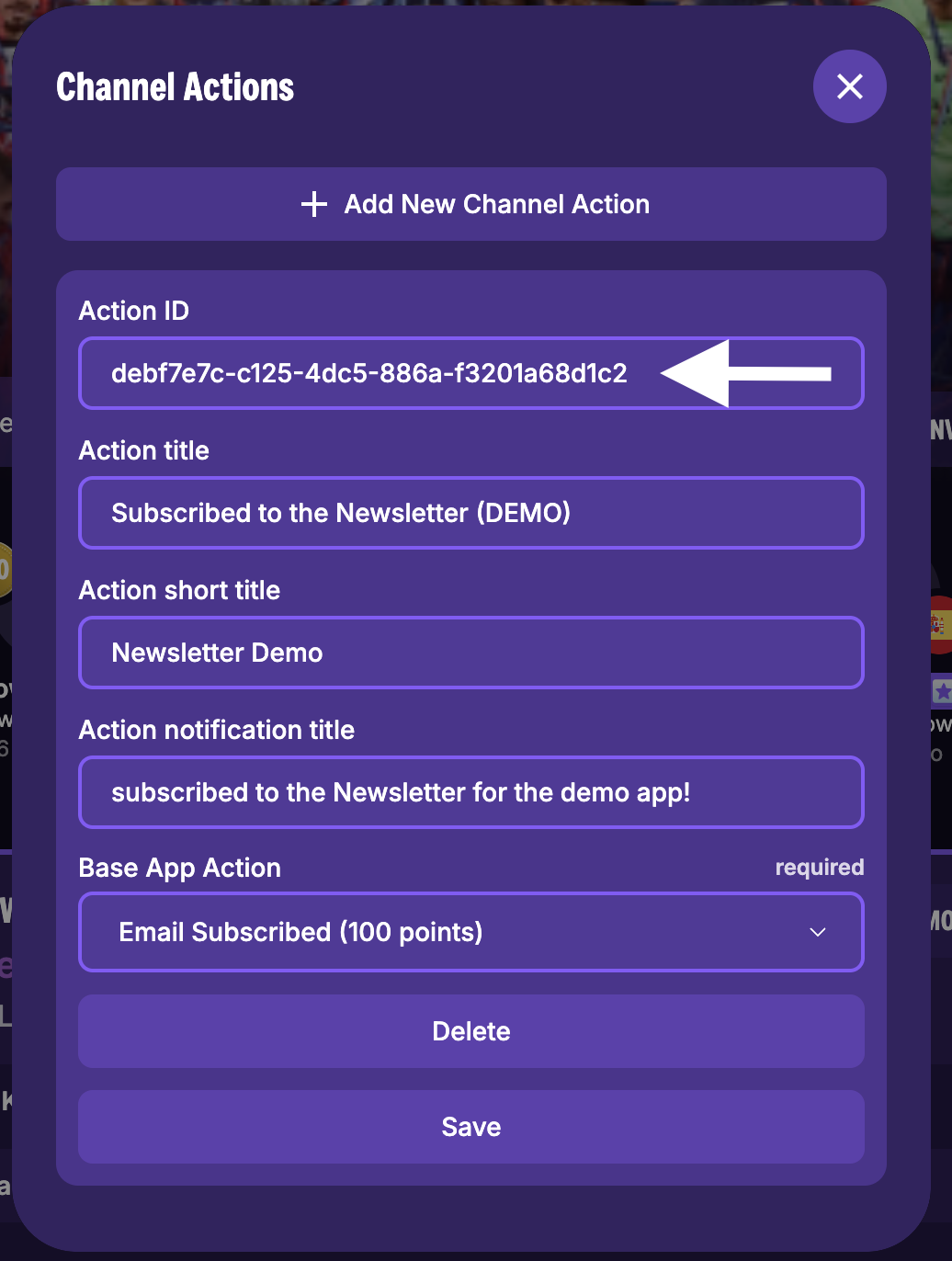
- Copy the Action ID from the newly created action. You’ll need this ID to track events from your website.
Continue
With your Channel Action created, you can now proceed to Tracking Events to wire up event triggers on your website using the Action ID you just copied.